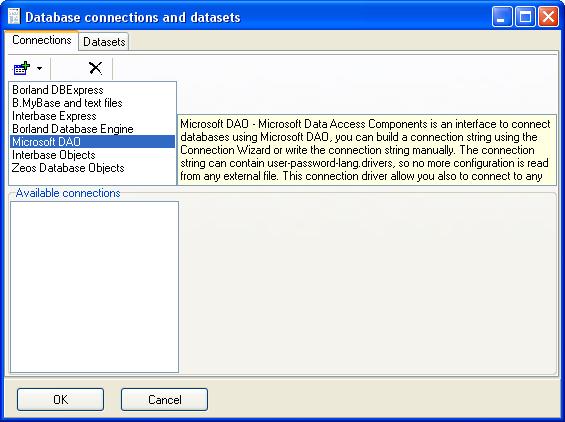
There are two basic data access elements on Report Manager, connections and datasets, connections are database access elements, you can define multiple database connections but usually a report have only a database connection.
Database access is interfaced using database drivers, most used database connection in Microsoft Windows environments is Microsoft DAO (Microsoft Data Access Objects), this allow to connect databases using Ole DB and ODBC drivers. This drivers are available if you install the client software of your database, for example you should install Microsoft SQL Server client libraries, but in some operating systems the driver is already provided (and upgraded when necessary) so there is no need to install it.
Report Manager supports some database drivers, and each driver may be able to connect to one or more database server (or database plain files). For example Microsoft DAO allow access to any ODBC interface compatible database.
To access connections configuration you can create a new report with the designer, then select data configuration option at Report menu.
In current example we will connect to a SQL Server database. Select Microsoft DAO driver and click the add icon, write a name for the connection.
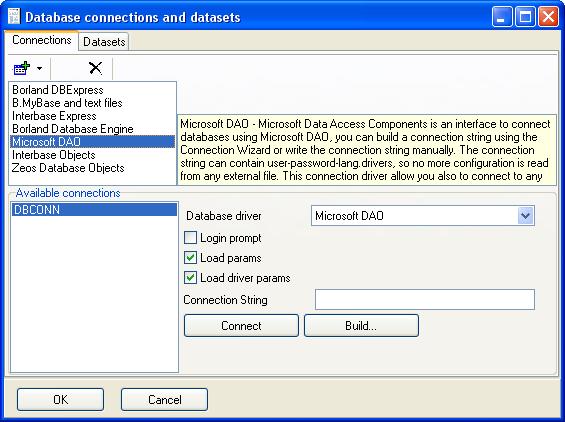
Use the Build button to start the wizard that will help you to generate a Microsoft DAO connection string.
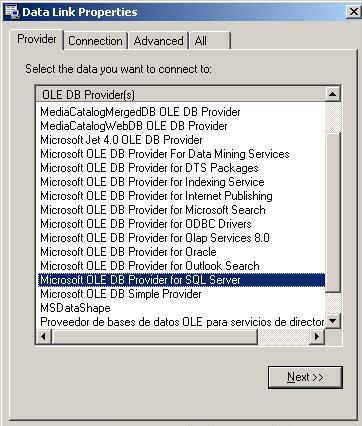
Select Ole DB for SQL Server and click next.
Place correct connection parameters, this are machine name, database name, user name and password, ask database administrator if necessary.
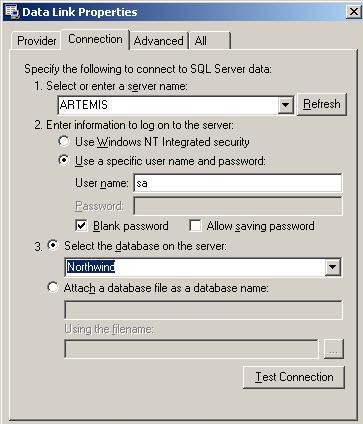
For our first sample we will use the North Wind sample database provided in Microsoft SQL Server installations.
Now you can test the connection by clicking the Connect button.
Click OK button and save your report, this is a report with a database connection defined.
A dataset is usually the result of a SQL sentence, that is named also as a record set, a dataset need a database connection, you can link more than one dataset to a single connection.
Trick: Note that some database drivers need a database connection for each dataset.
To access datasets configuration you can open previous report and select data configuration option at Report menu, if there is already a connection defined the datasets tab will be the default for this screen.
Add a dataset named CUSTOMERS. There is a tree on the left to help you in knowing about database tables and fields.
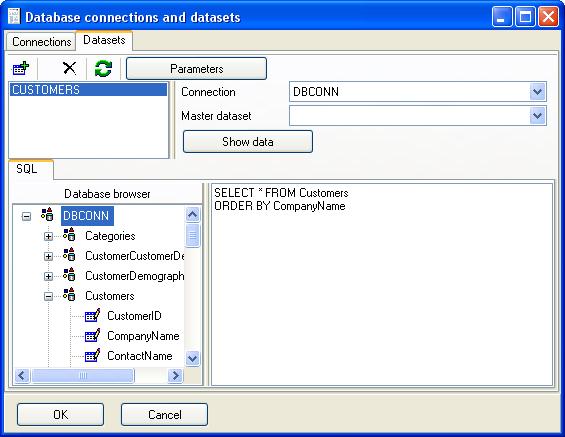
Place this sql sentence:
SELECT * FROM Customers ORDER BY CompanyName
Click show data button, and browse data retrieved.
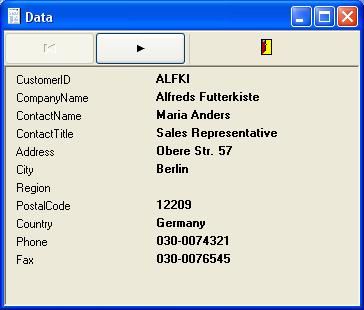
Leave data browse window, click OK button to save changes to data configuration. We have a report with a connection and a dataset using that connection to retrieve all Customers sorted by company name.
A report scheme can have any number of connections and datasets, the report is calculated processing report structure in a predefined way.
The report structure can have any number of sub reports, sub reports are processed in natural order, in our sample we have only one sub report.
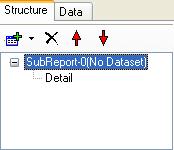
A sub report usually iterate a dataset, that is the detail section will print for each record on the dataset . If no dataset is assigned, the sub report will print the detail only once. Assign the new dataset to the sub report.
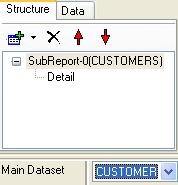
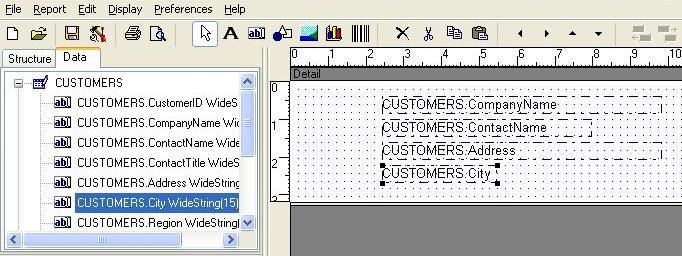
Next step is to drag some dataset fields on the detail section, select Data Tab, expand the dataset and drop the fields on the detail section.
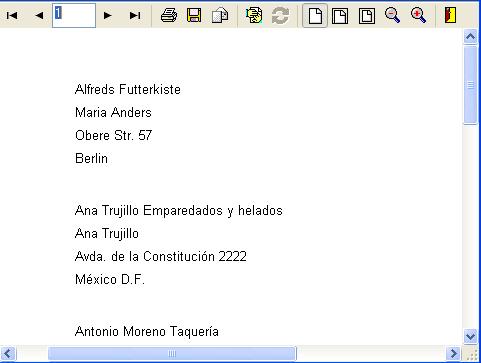
Preview the report and see the detail is printed for each record in the dataset.
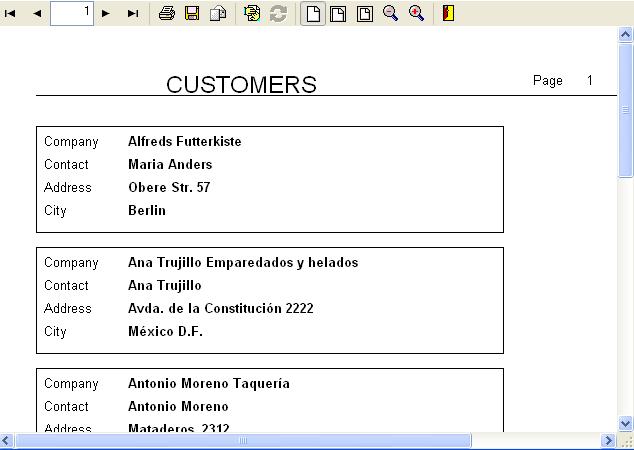
Edit the sample report from this chapter adding labels, page numbering, page header, so it looks like this:
Design a new report, the report must show the Employee data.