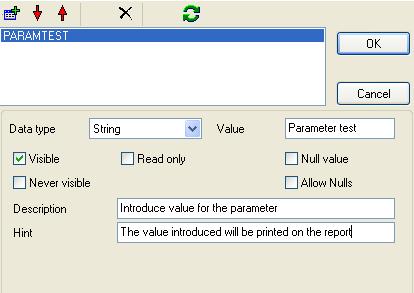
A report parameter is a report element that may cause variations in final report result. Some report parameters are shown to the user to obtain a customized report result. So you define parameters, the user or the developer change them before executing the report and the final result is obtained.
For example the user can choose which order number to print, or the title for the document.
Parameters can be used for multiple purposes:
Create a new report then select Parameter Definition from Report menu.
Click on the add button and set parameter name as PARAMTEST.
Introduce the Value, a description and a hint, the hint will appear when the mouse pointer moves over the parameter.
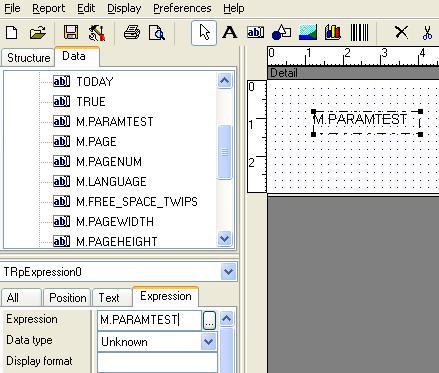
Select from the component palette the expression item.

Drag a rectangle over the detail section and write, on the expression property o newly created element: M.PARAMTEST
Preview the report, on preview you can click the green button to change parameters, and execute the report again with new parameter values:
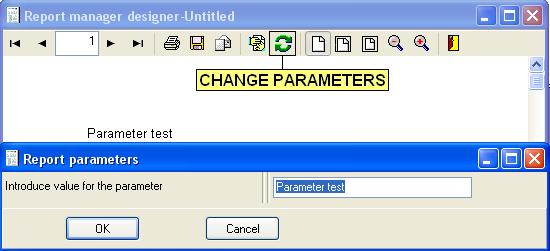
Try setting different values.
A parameter can also be used to alter query result. To place a parameter inside a query you must use a double quoted before the name of the parameter, for example:
SELECT MYDATA FROM MYTABLE WHERE MYCODE=:CODE
Open the customers report designed on chapter 3 and alter the sql sentence to this:
SELECT * FROM Customers WHERE CompanyName>:FROMNAME
ORDER BY CompanyName
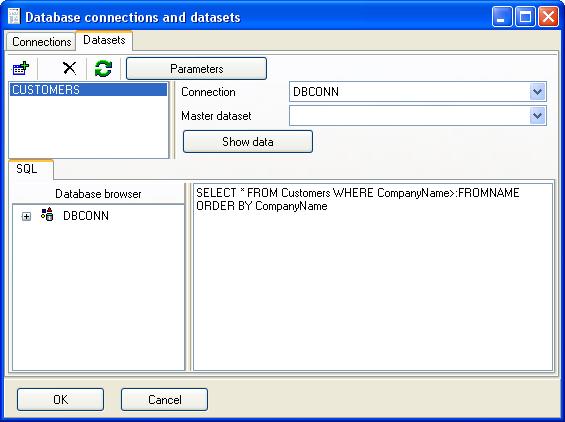
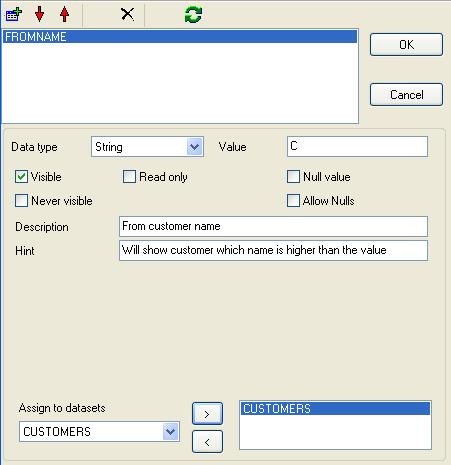
Then click on parameters button and define the parameter, note that you must specify that the parameter will be assigned to the 'CUSTOMER' query.
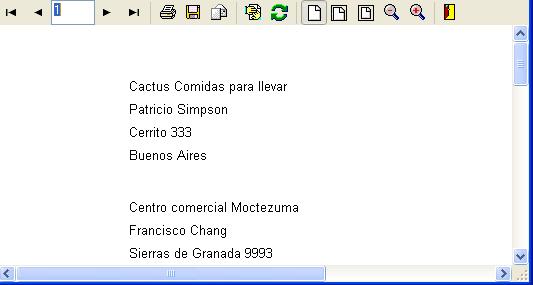
Preview the report, you should see Customers which name is greater than C:
This is a list of the parameter types available:
| Type | Description |
| String, Integer, Float, Date, Time, DateTime | Basic types, they contain fixed values |
| Boolean | False or True values |
| Expres.Bef.Open | Contains a expression evaluated before any dataset is open, so the result can be assigned to a parametric query for example |
| Expres.Aft.Open | Contains a expression evaluated after opening all datasets, so it can contain dataset fields |
| String Substi. | You use this parameter type assigning it to at least one dataset, you must provide a search string, the engine will search in the sql sentence for that string and will replace it with the value of the parameter. This can be used to pass the entire sql sentence as a parameter or only the WHERE clause for example. |
| Value list | You provide two list, one for value captions, and other for real values, the engine will show to the user a combo box to select from the caption list, and will assign the corresponding value from list of values. |
Value list type can be useful to show to the user strings like Yes/No that will translate to values 1/0, S/N when querying database.
String substitution can be used to replace full text from the sql sentence in this case the parameter name is not relevant, usually this parameters are not visible to the end user but assigned by programmers to change sql sentence (or the where clause) at runtime, before executing the report.
Because parametric querys are interpreted by the database driver, and compiled only once on the database server, you should use only them parts of the sql sentence where the database server allow, usually on the WHERE clause and on the SELECT clause.
For example this syntax is usually not accepted by database server:
SELECT MYFIELD1,MYFIELD2 FROM MYTABLE ORDER BY :MYPARAM
SELECT MYFIELD1,MYFIELD2 FROM :MYPARAM
When a parametric query can not be used you can use other advanced features like string substitution parameter type.
Report parameters can be changed from the preview window, but also when you use development tools or from command line tools.
If you use Delphi for example you can write following sentence to change a parameter value:
CLXReport1.Report.Params.ParamByName('CUSTOMERINI').Value:=2;
If you use the ActiveX component:
ReportManX.ParamByName('CUSTOMERINI').Value=2
You can also access parameters by using other properties:
ReportManX.Report.Params.Items[0].Value=2;
ReportManX.Report.Params.Items.Count;
For command line tools you can assign parameter values using the parameter name:
printreptopdf -PARAMparamname=value myreport.rep myresult.pdf
Modify the customers report to allow the user set a title for it.
Modify the customers report, the user must select a City, only the customers inside this city will be shown.
Execute printreptopdf changing the parameter values from command line obtaining different PDF files from different parameter values.