Installation in Microsoft Windows
Installation
Microsoft Windows Installation
Installing Report Manager Designer is an easy process, you must have application installation rights (on current Windows 10/11 and Windows Server), usually an Administrator account can install it.
See hardware and software requirements before installing Report Manager designer.
You must download the latest Microsoft Windows version from sourceforge:
https://sourceforge.net/projects/reportman
Then execute the setup application:
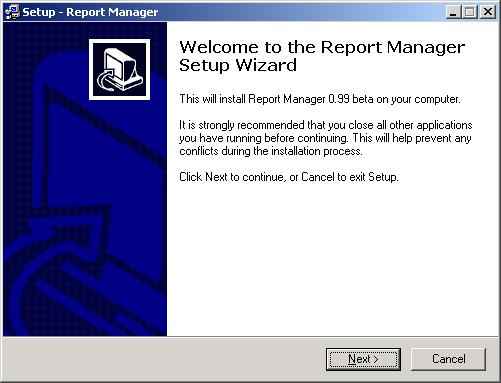
The setup application will issue a warning, click 'Yes' button, and a welcome window will appear:
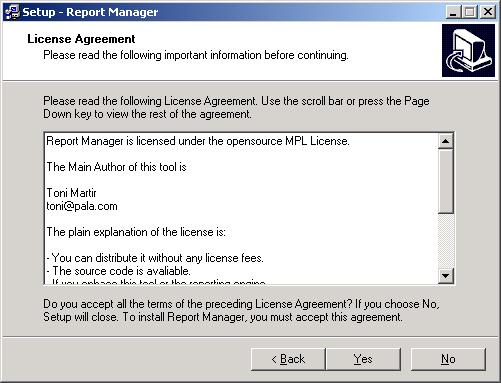
Click next and read the license agreement and release notes for the latest version:
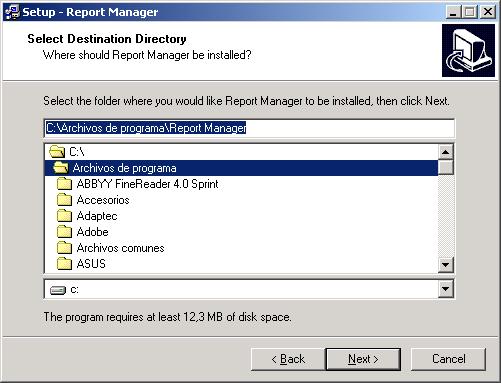
You can then select the destination directory (usually Program Files)
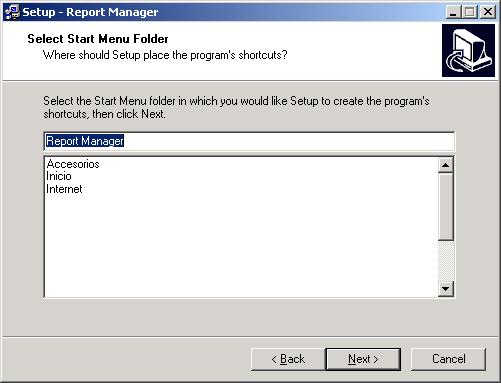
You can select also a Start Menu Folder for placing Report Manager Designer icons:
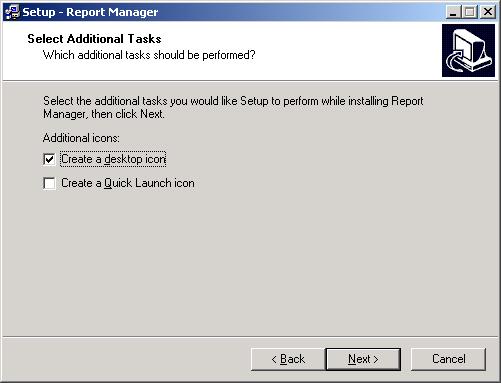
You can also create a Desktop icon or a quick launch icon.
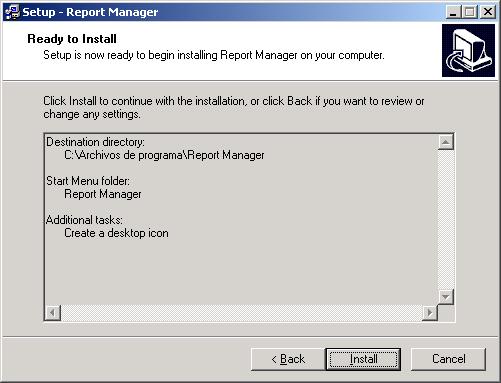
Only a confirmation dialog left, click install to proceed:
After that you have the option of executing it or you can go to Start Menu or the generated desktop icon.
Some installation utilities are included in the Start Menu group to install Report Server service and ActiveX control.
To uninstall Report Manager use the standard procedure, that is go to Settings > Apps (or Control Panel > Programs and Features), click Report Manager Designer and the uninstall button.
Installing the development components
The steps above install the Report Manager Designer and its tools. To compile the reporting engine and components into your own application, install the packages for your IDE: see Compiling in Delphi (Delphi 4 through RAD Studio 13), Compiling in C++Builder, or the Linux and .NET instructions. Lazarus/FPC users build the reportman.lpk and reportman_lcl.lpk packages.
About database connections configuration filesIf you have installed Borland Delphi6 /C++Builder 6 product before, Report Manager will use Borland database connection files (dbxdrivers.ini & dbxconnections.ini) from Borland Shared directory (this path information is stored in the registry), else Report Manager Designer will use current directory files, so to modify that files (alter configuration) you must have rights to them.
To use another directory for database configuration files you must create the registry entries containing the path including the file:
Connection Registry File
Driver Registry File
in key
HKEY_LOCAL_MACHINE\SOFTWARE\Borland\DBExpress
or (if the above does not exist) HKEY_LOCAL_USER if the configuration is available only for the active user.
Printer configuration file
Report Manager Designer will use a Printer configuration file, only used in printer selection, this file will be searched in the common application data folder (ProgramData) as reportman.ini, if not found it will create or use a reportman.ini in the current user's application data folder.