Printing labels
Advanced report design
Printing labels (horz.displacement/vert.displacement)
To print labels you must first:
- Measure the top-left label distance from physical page
- Measure the label width and height including the space between labels
- Examine printer limitations, that is printable area, if the printer limitations invades label space then you must consider not use the first row (or column) of labels to use all the space of the other labels or not use the this space (for each label)
The design of a report that prints labels follows this steps:
- Create a new report, and setup the main dataset, test it placing some labels and fields
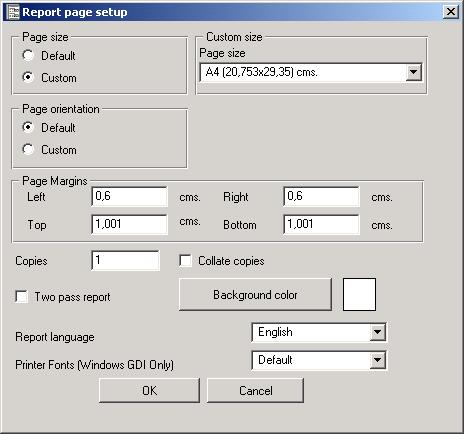
- Set page margins as the top-left label distance of the first label
- Set the width and height of the detail as the width and height of the labels plus the label distance
- Set detail Horz.Desp. property to true for left to right labels, or Vert.Desp to true for up to down labels.
- You can test the adjustment by placing a shape of type rectangle and print it (in Windows, if the driver is correct, the preview of the printable area should be exact)
- If the printer has printable area limitations you can omit the first row or column by adding this space to top-left page margins or not use this space
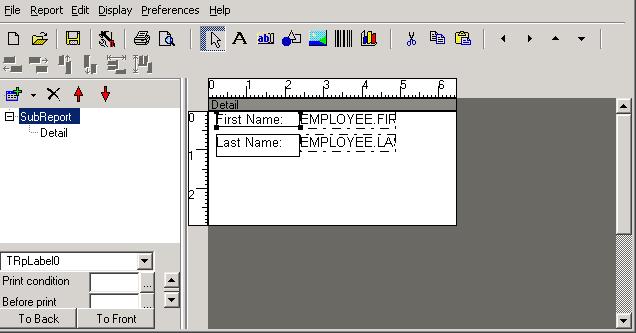
Here is a snapshot of label1.rep report design, 6,5cm x 3 cm labels
The page setup for that report
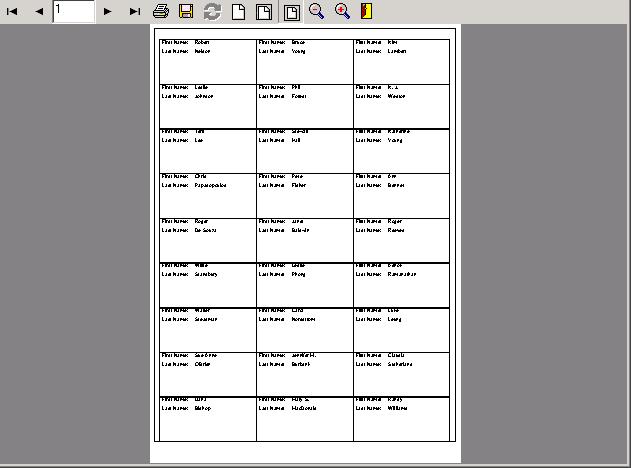
And preview using Windows GDI Driver
You can view in this sample different labels of different employees, usually you need to print several copies of the same label, to do that you must provide a dataset with X copies of the same record.
If you want to begin printing labels after 10 labels then you must provide 10 empty records, so the space of this labels will be skipped.
The building of the dataset can be server side, if you use for example a SQL database engine you can write a stored procedure with a parameter like number of blank records, number of copies to print and return the built dataset.
This is a sample using Interbase/Firebird database engine:
CREATE PROCEDURE LABEL_ADRESSES

  (

  BLANKS INTEGER,

  QTY INTEGER,

  CLIENTEINI INTEGER,

  CLIENTEFIN INTEGER

  )

  RETURNS

  (

  ACODE INTEGER,

  ANAME VARCHAR(40) CHARACTER SET WIN1252,

  AADRESS VARCHAR(50) CHARACTER SET WIN1252,

  ACODE_POSTAL VARCHAR(15) CHARACTER SET WIN1252,

  ALOCATION VARCHAR(40) CHARACTER SET WIN1252,

  PROVINCE VARCHAR(30) CHARACTER SET WIN1252

  )

  AS

  DECLARE VARIABLE I INTEGER;

  BEGIN

  I=0;

  /*BLANKS*/

  ACODE=0;

  ANAME='';

  AADRESS='';

  ACODE_POSTAL='';

  ALOCATION='';

  PROVINCE='';

  WHILE (:I<:BLANKS) DO

  BEGIN

  SUSPEND;

  I=I+1;

  END

  /*QTY*/

  I=0;

  FOR SELECT C.ACODE,C.ANAME,C.AADRESS,C.ACODE_POSTAL,C.ALOCATION,C.PROVINCE

  FROM CLIENTES C

  WHERE C.ACODE BETWEEN :CLIENTEINI AND :CLIENTEFIN

  INTO :ACODE,:ANAME,:AADRESS,:ACODE_POSTAL,:ALOCATION,:PROVINCE

  DO

  BEGIN

  I=0;

  WHILE (:I<:QTY) DO

  BEGIN

  SUSPEND;

  I=I+1;

  END

  END

  END
To prepare a dataset to be passed to the reporting engine with a number of records you can use TClientDataset and assign the dataset to the reporting engine:
cdataset:TClientDataset;
...
cdataset.FieldDefs.Assign(itemsdataset.FieldDefs);
cdataset.CreateDataset;
// Repeat for each number of blank records
cdataset.Append;
cdataset.Post;


// Repeat for each number of filled records
cdataset.Append;
for i:=0 to cdataset.FieldCount-1 do
begin
 cdataset.Fields[i].AsVariant:=itemsdataset.Fields[i];
end;
cdataset.Post;
// At design time you must assign the clientdataset to the report using a TRpAlias
  component
CLXReport1.Execute;